How to Enable or Disable ‘Add Profile’ in Microsoft Edge

Microsoft Edge is the default browser in Windows 11. However, users can switch to their preferred or favorite browser anytime. Edge is based on Chromium, similar to Google Chrome and other Chromium-based browsers today.
The BrowserAddProfileEnabled policy controls whether people can create new profiles in Microsoft Edge. By default, this option is turned on. That means users can add new profiles whenever they want. If you turn it off, people won’t be able to create new profiles.
Why Would You Want to Change This?
You might want to disable the “Add Profile” option if you’re sharing a computer with others and want to prevent them from creating new user profiles in Edge.
What Happens When You Disable It?
When you disable this option, users cannot add new profiles from the Identity menu or the Settings page in Edge.
How to Enable or Disable the Add Profile Option in Edge
- Close all Microsoft Edge windows first.
- Open the Windows Registry editor as administrator. ⚠️ Admin privileges required
- Navigate to the registry key below:Code
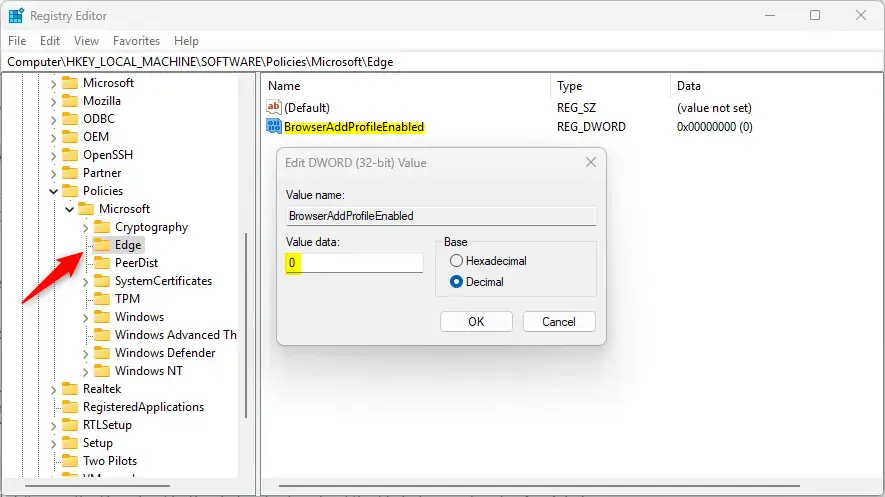
Computer\HKEY_LOCAL_MACHINE\SOFTWARE\Policies\Microsoft\Edge
- To disable “Add Profile,” type:
0 - If you don’t see the “BrowserAddProfileEnabled” item, right-click in the empty space, select New > DWORD (32-bit) Value, name it “BrowserAddProfileEnabled,” and enter:
0 - You may need to restart your computer for the changes to take effect.
- Double-click the BrowserAddProfileEnabled item in the right pane to open it.
How to Turn It Back On
To allow the “Add Profile” option again, simply delete the “BrowserAddProfileEnabled” item you created. Then restart your computer.
Summary
Controlling the “Add Profile” option in Microsoft Edge is easy. Just open the Windows Registry editor and change the BrowserAddProfileEnabled value. Type 0 to turn off profile creation, or delete the entry to turn it back on. Remember to restart your computer after making changes. For more help, visit Microsoft.com
How do I enable the 'Add Profile' option in Microsoft Edge?
What happens if I disable the 'Add Profile' option in Edge?
Where can I find the BrowserAddProfileEnabled setting?
Do I need to restart my computer after changing the Edge profile settings?
How can I restore the default 'Add Profile' option in Edge?
Was this guide helpful?





Leave a Reply Cancel reply